
Firestick vs ONN TV Comparison: Which Device Runs Vivimate Best?
Choosing the right hardware configuration is the most critical decision you will make when cutting the cord and building a modern streaming setup. A poorly optimized streaming box will turn your evening relaxation into a technical nightmare filled with visual stutters, slow app response times, and constant connection failures. This is especially true when running resource-intensive live streaming interfaces.
At 4Kvivmate.com, we are dedicated to helping you optimize your media setups. Today, we are analyzing a massive showdown in the budget-to-midrange streaming hardware space: Amazon’s Fire TV Stick (specifically the flagship Fire TV Stick 4K Max) versus Walmart’s Onn TV hardware (specifically the powerhouse Onn 4K Pro Streaming Device).
Both of these devices are designed to transform any standard television into an ultra-high-definition smart hub for a minimal investment. However, their underlying operating systems, hardware architectures, and port availability differ significantly. In this publication-ready guide, we will break down exactly how these two streaming giants handle Vivimate, the premier IPTV player, evaluating everything from installation ease to system performance, memory management, and anti-buffering capabilities.
The Competitors: Hardware Architecture and Technical Specs
To understand how these platforms process massive live video streams, we must first look under the hood. Live media playback requires continuous data processing, fast memory caching, and rapid network translation. When a player handles a massive playlist containing tens of thousands of channels and video-on-demand files, hardware limitations quickly manifest as system freezes or application crashes.
Let us evaluate the specific technical blueprints of the top-tier versions of both lineups: the Amazon Fire TV Stick 4K Max (2nd Gen) and the Walmart Onn 4K Pro Streaming Device.
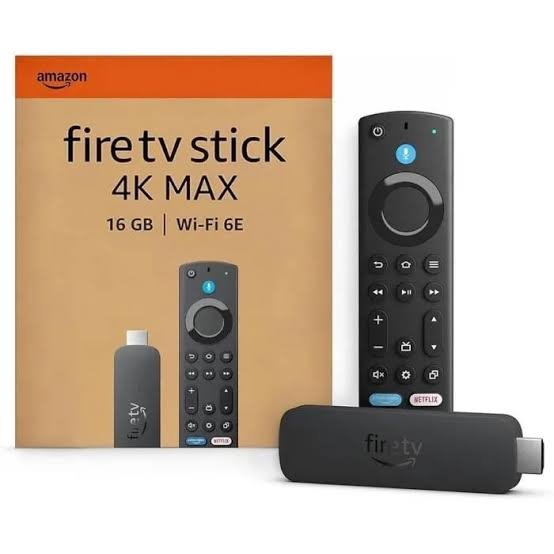
Amazon Fire TV Stick 4K Max. Source: MAdomotique / Amazon Fire TV Stick 4K Max – Streaming 4K Wi-Fi Alexa
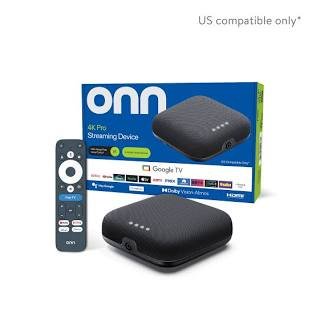
Walmart Onn 4K Pro. Source: Walmart / Free Shipping! Onn+ 4K Pro Streaming Device Google TV, Ultra HD …
Detailed Hardware Comparison Matrix
| Hardware Feature | Amazon Fire TV Stick 4K Max (2nd Gen) | Walmart Onn 4K Pro Streaming Device |
| Form Factor | HDMI Plug-In Stick | Desktop Streaming Box / Smart Hub |
| Processor (SoC) | MediaTek MT8696T (Quad-Core @ 2.0 GHz) | Amlogic S905X4 (Quad-Core @ 2.0 GHz) |
| Graphics Processing | IMG PowerVR GE9215 (@ 850 MHz) | ARM Mali-G31 MP2 |
| System Memory (RAM) | 2 GB LPDDR4 | 3 GB LPDDR4 |
| Internal Storage | 16 GB | 32 GB |
| Operating System | Fire OS 8 (Based on Android 11) | Google TV (Based on Android 12/14) |
| Wireless Networking | Wi-Fi 6E (Tri-Band) | Wi-Fi 6 (Dual-Band) |
| Wired Connectivity | None (Requires external micro-USB OTG adapter) | Native 10/100 Mbps Ethernet Port |
| Expansion Ports | Single Micro-USB port (used for power input) | 1x USB 3.0 Type-A Port |
| Video Decoding | AV1, VP9, H.264, H.265 (HEVC) | AV1, VP9, H.264, H.265 (HEVC) |
| HDR Standards | Dolby Vision, HDR10+, HDR10, HLG | Dolby Vision, HDR10+, HDR10, HLG |
| Audio Passthrough | Dolby Atmos, 7.1 Surround Sound | Dolby Atmos, DTS-HD, Dolby Digital Plus |
Core Hardware Analysis
When analyzing raw processing potential, both chips offer quad-core configurations clocked at 2.0 GHz, giving them snappy menu response times. However, the operational divergence occurs when we look at system memory (RAM) and internal storage capacity.
The Walmart Onn 4K Pro includes a generous 3 GB of RAM, which is a 50% increase over the 2 GB found inside the Fire TV Stick 4K Max. In the context of running Vivimate, this extra gigabyte of memory changes everything. When the player parses an expansive setup file containing an electronic program guide (EPG) spanning multiple days across thousands of channels, it builds an internal database in the system memory.
A device with lower RAM will experience aggressive background app termination and interface stuttering, whereas the 3 GB layout on the Onn device keeps navigation fluid.
Furthermore, storage capacity on the Onn Pro is doubled to 32 GB, compared to the 16 GB on the Firestick. If you plan to utilize local recording features or store offline media assets, the Onn Pro provides an immediate out-of-the-box advantage without forcing you to buy external expansion hardware.
Operating System Comparison: Fire OS vs. Google TV
The software environment powering your device dictates how easy it is to install modern players, how much advertisement clutter you must navigate, and how long your hardware will stay relevant.
The Vivimate Android TV Experience (Google TV)
The Walmart Onn TV lineup runs the official Google TV software layer. This ecosystem treats the media player as a first-class citizen. Because it is an official vivimate android tv deployment, installing the application is completely seamless.
Google TV provides unrestricted access to the official Google Play Store, letting you download the player with a single click. There is no need to jump through developer loopholes, toggle hidden menus, or input custom download codes.
Furthermore, Google TV’s background process management allows the application to synchronize its data layers in a clean environment, ensuring your program guides update accurately even when your television is in sleep mode.
The Vivimate Firestick Experience (Fire OS)
Amazon utilizes a heavily modified fork of the Android Open Source Project called Fire OS. While it can run the exact same core code, Amazon enforces strict control over its software environment.
Because the app is not natively hosted inside the Amazon Appstore, achieving a functional vivimate firestick setup requires sideloading. You must use utility applications to download the raw APK file from external servers.
Amazon has also taken active steps across recent software patches to restrict user modifications, such as blocking custom launchers and changing how developer options are unlocked. While a vivimate firestick configuration functions perfectly once installed, the initial setup barrier is higher, and users must stay alert to ongoing Fire OS updates that might alter sideloading permissions.
Installation and First-Time Setup on Both Ecosystems
Let us contrast the actual operational sequence required to transition from a brand-new device to a fully configured streaming setup.
Vivimate Setup Guide for Amazon Firestick
Because Amazon does not natively list the app, you must follow this specialized deployment path using the Downloader utility:
1.Reveal Developer Settings:Requires 7 manual clicks.
Navigate to the Settings gear on your Firestick home screen. Click on My Fire TV, then select About. Highlight your specific device name and click the select button on your remote 7 times rapidly. A notification will state: “No need, you are already a developer.”
2.Authorize External Applications:Safety configuration step.
Press the back button to return to the My Fire TV screen. You will now see a newly revealed menu titled Developer Options. Click it, find Apps from Unknown Sources, and toggle it to ON.
3.Deploy the Downloader Tool:Available in the official store.
Return to your main home screen. Access the search bar, enter “Downloader,” select the orange icon from the utilities section, and click Download to install it.
4.Execute APK Retrieval:Input trusted installation path.
Launch the Downloader app. Allow all requested file-system permissions. In the main URL input bar, input the direct official download path or shortcode for the Vivimate APK file. Click Go to pull down the asset.
5.Finalize System Installation:De-clutter internal device memory.
When the installation file completes its download, an installer prompt will automatically appear. Click Install. Once finished, click Done, and select Delete on the lingering APK file to reclaim your internal device storage.
Vivimate Setup Guide for Walmart Onn TV
By contrast, setting up the player on the Walmart Onn 4K Pro or standard Onn box leverages the native platform app store:
- Launch the Search Utility: From your Google TV dashboard, scroll up to the top navigation layer and select the Apps tab, or trigger the voice assistant.
- Locate the Player: Type or speak the application name into the search engine.
- Execute Single-Click Download: Select the official app card from the results and click Install. The Google Play Store automatically verifies the application certificate, downloads the asset, and creates a launch icon on your dashboard.
- Confirm App Permissions: Open the application for the first time and grant storage access permissions so it can save your internal configuration models.
Playlist Configuration and EPG Integration
Once the base shell is initialized on either the Firestick or the Onn box, you must execute your vivimate playlist setup to import your channel architecture. The process remains visually identical within the app’s interface across both hardware choices, but the speed at which your data parses is highly dependent on your hardware choice.
Step-by-Step Playlist Ingestion
To feed your live TV links into the system, follow these core steps:
- Launch the media player app on your device.
- Select Add Playlist from the primary landing screen.
- Choose Xtream Codes API (highly recommended over raw M3U URLs due to superior category sorting and faster data processing).
- Input your provider’s specific server credentials:
- Server Address: The base communication URL (e.g.,
[http://exampleportal.tv:8080](http://exampleportal.tv:8080)). - Username: Your encrypted account identifier.
- Password: Your unique secure key.
- Server Address: The base communication URL (e.g.,
- Check the activation toggles for Include VOD and Include Catch-up if your distribution tier includes those archives.
- Click Next to initiate the system indexing phase.[System Core Data Exchange]
Provider Server —> Downloads Channel Lists —> Processes EPG XML Guide —> Populates Local Cache
During this indexing phase, the Walmart Onn 4K Pro pulls ahead of the Firestick. Parsing a massive file containing 20,000 live channels and 60,000 movie listings strains a device’s processor and memory cache.
Thanks to its 3 GB of RAM, the Onn Pro finishes index compilation substantially quicker than a standard streaming stick, reducing layout errors or random player closures during initialization.
Configuring the Vivimate EPG Guide
A player is only as good as its electronic program guide. To ensure you never see the dreaded “No Information Available” label across your guide grid, map your vivimate epg guide using these management rules:
- Set Automatic Refresh Routines: Go to Settings > EPG > EPG Sources. Ensure your primary link is set to update every time the application launches.
- Establish Past Data Cleanliness: Configure the guide to automatically purge historical television schedule data older than 24 hours. This keeps the internal cache folder lightweight, preventing the device’s storage from filling up with old logs.
- Time-Zone Calibration: If your channel listings show the correct show titles but the time indicators are shifted by a few hours, navigate to the specific EPG source settings and apply a manual time offset (e.g.,
+1:00or-5:00) to sync the grid with your local time zone.
Unlocking Premium Features Across Both Environments
To use advanced options like multi-screen viewing, customized channel grouping, manual guide sorting, and automated recordings, you must purchase vivimate premium.
Because this application relies on a secondary validation framework rather than standard in-app purchase setups, unlocking premium varies depending on whether you are navigating the Amazon ecosystem or the Google TV ecosystem.
Managing the Companion App Framework
The premium authentication system requires an external Android phone or tablet to run the validation utility:
- Download the validation companion app from the Google Play Store onto an Android mobile device.
- Register a secure master account profile.
- Complete the secure digital transaction to purchase either a yearly access pass or a lifetime multi-device activation license.
- Return to your television streaming hardware, access the premium activation screen within the media player, and log in using those exact master credentials.
Platform-Specific Deployment Complexities
- On the Onn TV Box: Because you are already inside a unified Google account ecosystem, logging into your premium account on the TV box is seamless. You can even use your Google TV profile to quickly populate password entries.
- On the Fire TV Stick: Because Amazon uses its own cloud account structure separate from Google, you must manually enter your validation credentials via the on-screen keyboard. Make sure to use the official Amazon Fire TV phone remote app to copy and paste your passwords, saving you from clicking through letters one by one with a physical remote control.
Troubleshooting Deep Dive: Banishing Buffering and Fixes for Failures
No matter how advanced your streaming box is, you will occasionally encounter data delivery bottlenecks. Let us analyze how to address these performance drops on both platforms.
Eliminating Vivimate Buffering Bottlenecks
Persistent vivimate buffering typically indicates a network slowdown rather than a software failure. Live IPTV streams require a constant, unthrottled data connection. If the video stream halts to load every few minutes, apply these fixes:
1. Hardware Connection Strategy (Wired vs. Wireless)
This is where the Walmart Onn 4K Pro holds a major built-in advantage. It features a native Ethernet port on the back of the chassis. Hardwiring your box directly to your internet router removes all wireless interference, instantly stabilizing your data speeds.
The Amazon Fire TV Stick 4K Max counterattacks with cutting-edge Wi-Fi 6E compatibility. If you own a high-end Wi-Fi 6E router capable of broadcasting on the clear 6 GHz frequency band, the Firestick Max can achieve blisteringly fast wireless speeds.
However, if your router is several rooms away or lacks 6E support, wireless signals can degrade rapidly. To connect the Firestick to a wired Ethernet cable, you must buy an additional micro-USB OTG expansion adapter, which adds extra cables behind your television.
2. Adjusting Advanced Buffer Caching
If your base internet speeds are unstable, you can force the application to download a larger portion of the incoming stream before playing it:
- Navigate to Settings > Playback.
- Select Buffer Size.
- Switch the parameter from Normal to Large or Very Large.
Changing this setting adds a 5 to 10-second delay when you first select a channel, but it creates a safe data buffer that protects your stream from stuttering during brief drops in your internet speed.
[Standard Buffer]: [Stream Data] -> [Immediate Playback] (Vulnerable to minor drops)
[Enhanced Buffer]: [Stream Data] -> [5-10 Sec Cache Storage] -> [Smooth Continuous Playback]
3. Bypassing ISP Throttling via a VPN
If your speed tests show great results but the app continues to buffer during live premium sporting events, your ISP is likely throttling your connection. Deploy a premium VPN app directly onto your Firestick or Onn box, select a nearby local server, and launch the media player again. Encrypting your traffic stops your ISP from monitoring your streaming habits and prevents intentional speed limits.
Resolving Vivimate Not Working Failures
If you run into a total system failure—such as a frozen menu screen, a continuous black screen, or instant app crashes upon launch—your setup has encountered a vivimate not working failure state. Use this diagnostic routine to identify and fix the issue:
[App Malfunction]
|
—> Check Network Access (Is internet active?)
|
—> Verify Server Link (Can you load the provider URL in a web browser?)
|
—> Execute Cache Purge (System Settings -> Clear App Cache)
|
—> Synchronize Data Layers (Update Playlist & EPG)
Step 1: Force Clear App Cache Data
Over weeks of heavy viewing, your television guide data and channel icon images populate a local cache folder. If a data packet gets corrupted during download, it can lock up the entire application interface.
- On Google TV (Onn): Go to Settings > Apps > See all apps > Vivimate > Clear Cache.
- On Fire OS (Firestick): Go to Settings > Applications > Managed Installed Applications > Vivimate > Clear Cache.
- Warning: Never select “Clear Data” unless you want to completely erase your playlist setup credentials and reset the app back to factory defaults.
Step 2: Resolve Video Format Incompatibilities
If you get audio but the screen stays completely black when selecting a live feed, the internal video player is struggling to decode the stream’s format.
- Navigate to Settings > Playback.
- Locate the Video Player selection panel.
- Switch the primary decoder engine from Internal Player (ExoPlayer) to an external engine like VLC Media Player or MX Player (which must be installed separately on your device). External media engines feature more robust codec libraries that easily play older or non-standard video streams.
Step 3: Fix Connection Timed-Out Loop Errors
If the app displays a connection error while trying to reach your playlist provider, your ISP may have blocked the provider’s server domain name. To confirm this, toggle your VPN to an active state and click Update Playlist. If the channel data downloads successfully while the VPN is active, you will need to keep the VPN running whenever you stream.
App Ecosystem Options: Reviews and Alternative Players
To round out our evaluation, let’s take a look at a macro-level vivimate review regarding how it behaves on each hardware ecosystem and explore the performance of alternative choices on these platforms.
Comprehensive Cross-Device Vivimate Review
- Performance on Walmart Onn 4K Pro: Excellent (4.9/5). The 3 GB of RAM makes scrolling through channels completely seamless, and the built-in Ethernet port eliminates network stability worries. Having double the storage space also means you can download massive channel guides and use local recording features without running out of room.
- Performance on Fire TV Stick 4K Max: Great (4.4/5). The video decoding engine is fast and the Wi-Fi 6E connectivity works great if you have a compatible router. However, the 2 GB of RAM can cause the app to reload if you switch between multiple heavy apps, and the installation requires a few extra steps due to Amazon’s sideloading restrictions.
Evaluating Vivimate Alternatives
If you want to test how other media players behave on these streaming devices, consider trying these top-tier vivimate alternatives:
1. TiviMate IPTV Player
Widely considered the biggest rival to our main subject, TiviMate features a clean, highly optimized premium guide interface.
- Ecosystem Performance: It runs flawlessly on both platforms, but the Premium purchase process is much easier to manage on the Google TV framework of the Onn box because it connects natively with your Google Play billing settings.
2. IPTV Smarters Pro
A highly dependable, cross-platform media player that features built-in support for multiple connection styles.
- Ecosystem Performance: It is officially available across both the Google Play Store and the Amazon Appstore, making it an excellent alternative if you don’t want to deal with any sideloading steps on your Firestick.
3. XCIPTV Player
A highly visual media player that organizes your media using a dashboard layout with big, clear graphic tiles.
- Ecosystem Performance: It works great as a streaming option for families who prefer large, easy-to-read icons rather than compact guide spreadsheets. It runs perfectly on both the Firestick and Onn TV hardware layers.
The Ultimate Decision Matrix: Which Box Wins?
Now that we have compared every detail of these platforms, which streaming device should you buy to run your media center?
Choose the Walmart Onn 4K Pro If:
- You want a quick, official installation process straight from the Google Play Store without dealing with sideloading workarounds.
- You want a built-in Ethernet port for a reliable, hardwired internet connection that prevents wireless buffering.
- You manage large playlists with thousands of elements and want the extra stability of 3 GB of RAM.
- You need extra internal storage (32 GB) to download apps and record live programs without buying extra adapters.
Choose the Amazon Fire TV Stick 4K Max If:
- You have a high-end Wi-Fi 6E network router and want to take advantage of fast wireless speeds.
- You prefer a compact streaming stick that hides completely behind your television instead of a box that sits on your media console.
- You are deeply integrated into the Amazon smart home ecosystem and want to use Alexa commands to control your media.
Conclusion & Quick Takeaways
Both options provide incredible value for cord-cutters, but they target different types of users. The Amazon Fire TV Stick 4K Max is a fast, portable streaming stick with great wireless technology, but its limited expansion options and Amazon-centric software require a bit more effort to maintain.
On the other hand, the Walmart Onn 4K Pro operates like a dedicated mini-media console. Its extra RAM, expanded storage, and native ports make it the clear winner for running power-user media applications like Vivimate.
Quick Takeaways for 4Kvivmate.com Users:
- The Onn TV runs Google TV, allowing you to install the app natively from the app store, while the Firestick requires sideloading via the Downloader utility.
- The Onn Pro’s 3 GB of RAM handles massive channel guides and playlist updates much smoother than the Firestick’s 2 GB layout.
- If you encounter constant buffering, prioritize using the Onn’s native Ethernet port or add a premium VPN to stop your ISP from throttling your connection.
- Both platforms support premium video features like Dolby Vision and Dolby Atmos, ensuring top-tier picture quality if your television hardware supports them.
Frequently Asked Questions (FAQs)
Q: Can I copy my playlist settings from my Firestick directly over to my new Onn TV box?
Yes. You can back up your data easily by going to Settings > General > Backup Data within the app interface. Save the backup file to a shared local network drive or an external USB stick, and use the “Restore Data” option on your new Onn TV box to instantly transfer your exact setup, favorite channels, and custom guide configurations.
Q: Will the application work on the cheaper $20 Walmart Onn 4K box, or do I need to buy the $60 Pro model?
The app runs safely on the standard $20 Onn 4K streaming box. However, the budget model only includes 2 GB of RAM and 8 GB of internal storage, and it lacks built-in Ethernet and USB ports. While it handles basic live streaming perfectly fine, you will experience slower guide loading speeds and more limited storage space compared to the premium Pro version.
Q: Why does my Firestick show data connection errors while my Onn TV updates its guide perfectly fine on the same network?
Amazon’s Fire OS enforces aggressive power management routines that can shut down background processes when the device enters sleep mode. If your guide fails to update, open the app’s settings menu and ensure that the “Update on App Start” toggle is turned on. This forces the player to fetch fresh guide details whenever you open it.
Q: Do I need to buy a separate premium license for my Firestick and my Onn TV box?
No. A single lifetime premium subscription covers up to 5 individual devices simultaneously. You can activate the premium features on your Firestick, your Onn TV box, and your Android phone all at the same time using your single master account login.
Q: How do I connect a physical USB flash drive to the Firestick Max to save recorded shows?
Because the Firestick only has a single micro-USB port used for power, you must buy a three-way micro-USB OTG (On-The-Go) Y-cable. This adapter splits the port, allowing you to plug in your original power cable while opening up a standard USB Type-A slot to connect your external flash drive.